Add Extra Component in Toolbar
Introduction
This guide will show you how to add extra component in the right side of the toolbar. You can add any component in the toolbar as per your requirement.
Example
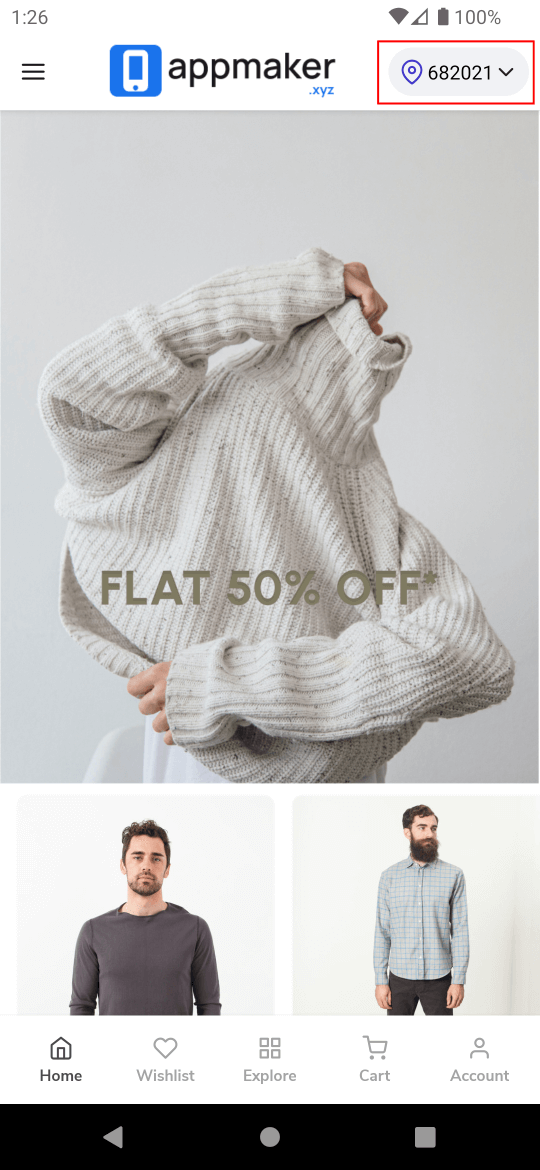
Steps
Create a new component in the
src/componentsdirectory. For example,src/components/MapPin.js.Add the following code in the
src/components/MapPin.jsfile.
Example component:
import React from "react";
import { Pressable, StyleSheet, Text, View } from "react-native";
import Icon from "react-native-vector-icons/Feather";

const MapPin = ({ handleAction }) => {
  const handlePress = () => {
    // https://developer-docs.appmaker.xyz/docs/actions/appmaker-actions
    handleAction({
      action: "OPEN_INAPP_PAGE",
      pageId: "home",
    });
  };
  return (
    <Pressable style={styles.container} onPress={handlePress}>
      <Icon name="map-pin" size={18} color="#4338CA" />
      <Text style={styles.text}>682021</Text>
      <Icon name="chevron-down" size={18} color="#212121" />
    </Pressable>
  );
};

const styles = StyleSheet.create({
  container: {
    flexDirection: "row",
    alignItems: "center",
    justifyContent: "center",
    backgroundColor: "#f1f2f5",
    borderRadius: 20,
    padding: 8,
  },
  text: {
    color: "#000",
    marginLeft: 2,
  },
});

export default MapPin;
info
You can use the handleAction function to perform any action. For example, you can open a page, show a modal, etc. appmaker-actions.
- Add filter to the
activatefunction in thesrc/index.jsfile.
import React from "react";
import { appmaker, registerTheme } from "@appmaker-xyz/core";
import { blocks } from "./blocks";
import { pages } from "./pages";
import MapPin from "./components/MapPin";

export function activate(params) {
  // Add filter to the `app-toolbar-right-extra-components`
  appmaker.addFilter(
    "app-toolbar-right-extra-components",
    "theme-id",
    (defaultComponents, { handleAction }) => {
      return [
        ...defaultComponents,
        // Add your component here
        <MapPin key="map-pin" handleAction={handleAction} />,
      ];
    }
  );
}

const Theme = {
  id: "theme-id",
  activate,
  blocks,
  pages,
};

registerTheme(Theme);
export default Theme;
tip
You can add multiple components in the toolbar. Just add the components in the array. For example, [...defaultComponents, <MapPin key="map-pin" />, <MapPin key="map-pin-2" />].
note
To customize existing icons in the toolbar, you can refer to the Customize Toolbar Icons guide.