How to show search page results as grid?
If you want to show search results as a grid, you can do this by replacing the search page with a custom implementation that uses the dataSource pattern.
Prerequisites
Before implementing this customization, ensure:
- Your theme extends
@appmaker-xyz/shopify-core-theme - You have
zodinstalled in your project (optional, for param validation):yarn add zod
Folder Structure
Your theme should have the following structure:
src/
├── pages/
│   ├── index.js        # Exports pages object
│   └── searchPage.js   # Your custom search page
└── ...
Implementation
This approach uses the dataSource attribute with repeatable: 'Yes' to fetch and display search results in a grid layout.
Steps
Create a new file in the
src/pagesfolder of your theme and name itsearchPage.js(orsearchPage.tsfor TypeScript).Add the following code to the file:
import z from 'zod';

const validQueryParamsSchema = z.string().min(1);

const searchPage = {
  title: 'Search',
  attributes: {
    headerShown: false,
    backgroundColor: '#fff',
    contentContainerStyle: {
      paddingHorizontal: 24,
    },
  },
  stickyHeader: {
    blocks: [
      {
        name: 'shopify/search-block',
        attributes: {},
      },
    ],
  },
  blocks: [
    // Show suggestions when search query is empty
    {
      name: 'shopify/search-suggest',
      attributes: {
        __display: '{{lodash.isEmpty(pageState.searchInputValue)}}',
      },
    },
    {
      name: 'shopify/collection-suggest',
      attributes: {
        __display:
          '{{lodash.isEmpty(pageState.searchInputValue) && !checkIfTrueFalse(plugins.shopify.settings.hide_collection_suggest)}}',
      },
    },
    // Grid display when search query exists
    {
      name: 'appmaker/product-grid-item',
      clientId: 'search-result-grid',
      attributes: {
        __display: '{{!lodash.isEmpty(pageState.searchInputValue)}}',
        gridViewListing: true,
        numColumns: 2,
        hasPages: false,
        dataSource: {
          source: 'shopify',
          responseType: 'replace',
          attributes: {
            mapping: {
              items: 'data.data.products.edges',
            },
            methodName: 'searchProduct',
            params: '{{pageState.searchInputValue}}',
            // Optional: Validates params before fetching
            paramsValidations: {
              zodSchema: validQueryParamsSchema,
            },
          },
          repeatable: 'Yes',
          repeatItem: 'DataSource',
          dependencies: {
            pageState: ['searchInputValue'],
          },
        },
      },
      dependencies: {
        pageState: ['searchInputValue'],
      },
    },
  ],
};

export default searchPage;
- Import the
searchPagefile in thesrc/pages/index.js(orindex.ts) file and add it to the pages object:
import searchPage from './searchPage';

const pages = {
  // other pages
  searchPage,
};

export { pages };
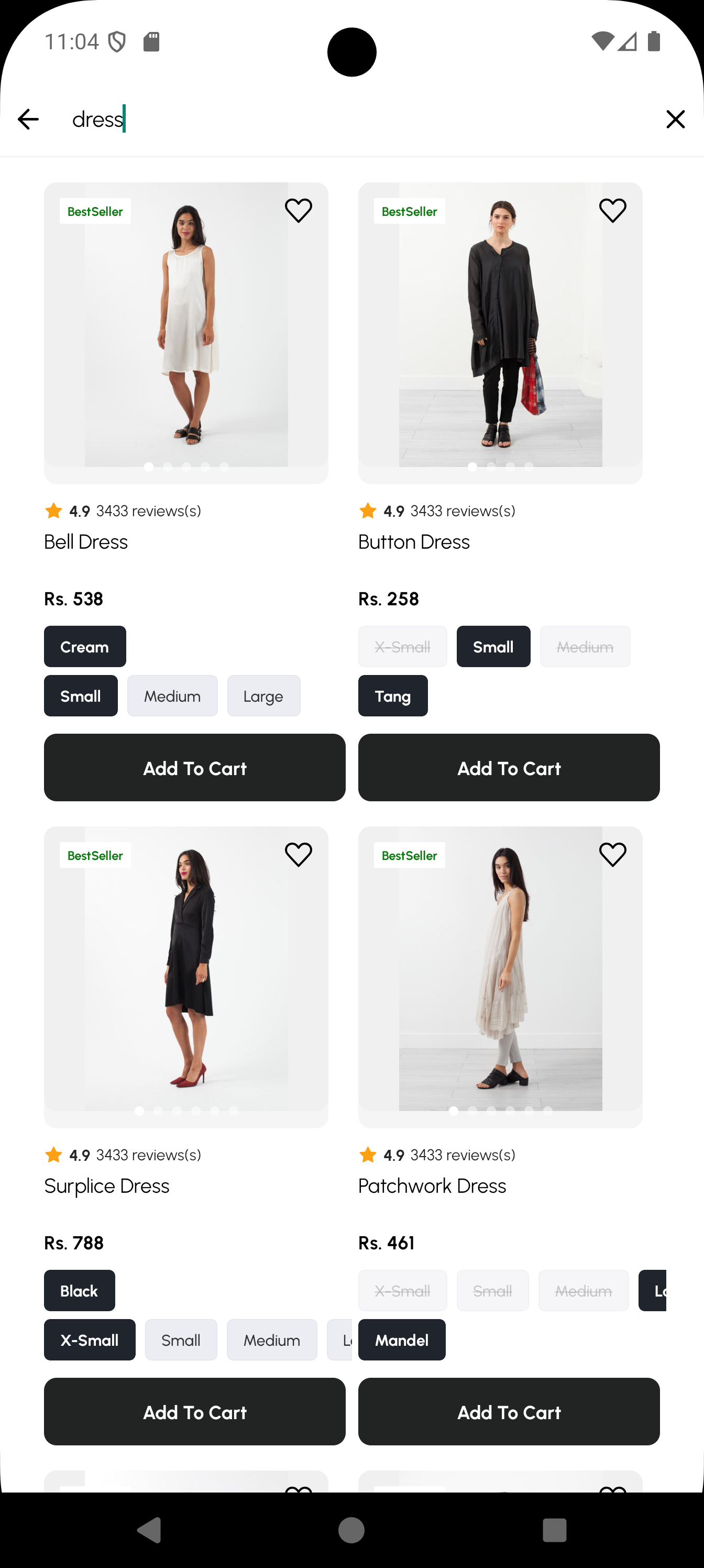
- Now, when you search for a product, the search results will be displayed as a grid.
Screenshot
Here's what the search page looks like with grid layout on mobile:
Key Attributes Reference
Page Attributes
| Attribute | Type | Description |
|---|---|---|
headerShown | boolean | Show/hide the navigation header |
backgroundColor | string | Page background color |
contentContainerStyle | object | Style for the content container |
Search Block (shopify/search-block)
This block provides the search input and handles the search query state internally via the useSearchQuery hook.
Grid Display Attributes (appmaker/product-grid-item)
| Attribute | Type | Description |
|---|---|---|
clientId | string | Unique identifier for the block instance (used for debugging/testing) |
gridViewListing | boolean | Enable grid layout (set to true) |
numColumns | number | Number of columns in grid (default: 2) |
hasPages | boolean | Enable/disable pagination for infinite scroll (set to false for search results) |
DataSource Configuration
| Attribute | Type | Description |
|---|---|---|
source | string | Data source identifier ('shopify') |
responseType | string | How to handle response ('replace') |
attributes.mapping.items | string | Path to extract items from response |
attributes.methodName | string | Method to call on data source ('searchProduct') |
attributes.params | string | Parameters for the method |
attributes.paramsValidations | object | (Optional) Validation rules for params |
repeatable | string | Set to 'Yes' to enable list rendering |
repeatItem | string | Set to 'DataSource' |
dependencies.pageState | array | PageState keys to watch for changes |
Conditional Display (__display)
Use the __display attribute to conditionally show/hide blocks:
// Show only when searchInputValue is NOT empty
__display: '{{!lodash.isEmpty(pageState.searchInputValue)}}'

// Show only when searchInputValue IS empty
__display: '{{lodash.isEmpty(pageState.searchInputValue)}}'
Validation with Zod (Optional)
The paramsValidations attribute is optional and supports Zod schema validation to ensure search queries meet requirements before fetching.
Note: If using Zod validation, ensure
zodis installed:yarn add zod
import z from 'zod';

// Require at least 1 character
const validQueryParamsSchema = z.string().min(1);

// Use in dataSource
paramsValidations: {
  zodSchema: validQueryParamsSchema,
}
Other validation options:
// Function-based validation
paramsValidations: {
  fn: (params) => params && params.length > 0,
}

// Simple required validation
paramsValidations: {
  required: true,
  type: 'string',
}
Troubleshooting
Search results not displaying as grid
- Ensure
gridViewListing: trueis set in the block attributes - Verify the block is using
dataSource(notcustomDataSource) - Check that
repeatable: 'Yes'is set in the dataSource - Verify you're using
searchInputValue(notsearchKey) for the pageState dependency
Search not triggering
- Verify the block name is correct:
shopify/search-block - Ensure
paramsuses the correct pageState key:'{{pageState.searchInputValue}}'
Empty results
- Verify the
mapping.itemspath matches your API response structure (data.data.products.edges) - Check that
paramsValidationsis not blocking valid queries - Ensure the
searchProductmethod exists on the Shopify data source
Migration from Old Implementation
If you have an existing search page using customDataSource on appmaker/shopify-product-list, migrate as follows:
Before (Does Not Work)
{
  name: 'appmaker/shopify-product-list',
  attributes: {
    customDataSource: {  // This is NOT supported
      source: 'shopify',
      // ...
    },
  },
}
After (Correct)
{
  name: 'appmaker/product-grid-item',
  attributes: {
    dataSource: {  // Use dataSource instead
      source: 'shopify',
      // ...
      repeatable: 'Yes',
    },
  },
}
Key changes:
- Change block from
appmaker/shopify-product-listtoappmaker/product-grid-item - Change
customDataSourcetodataSource - Ensure
repeatable: 'Yes'is set - Use
searchInputValueinstead ofsearchKeyfor pageState